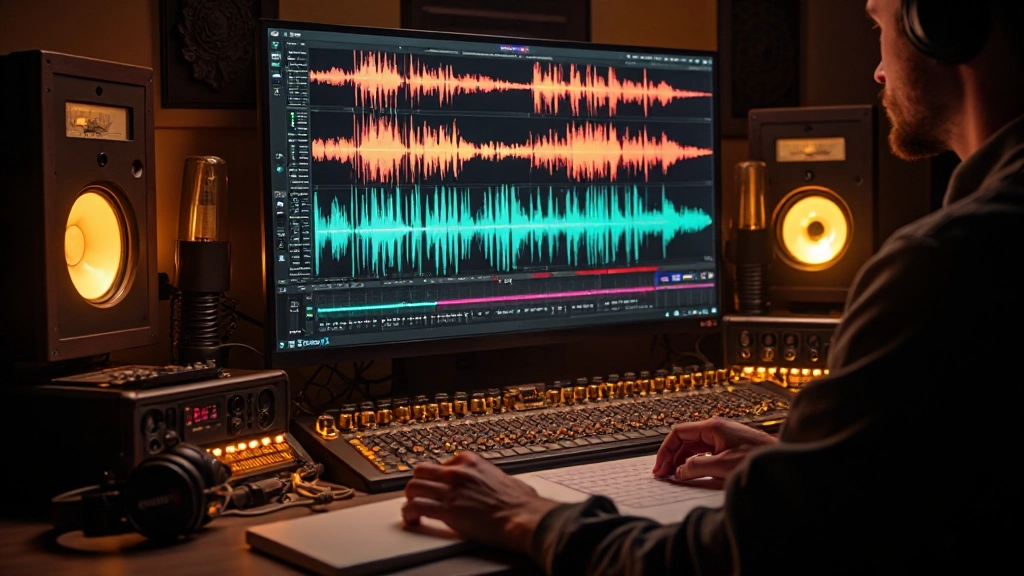
The click-pop-stutter of an overloaded CPU during a perfect take feels like watching your house burn down in slow motion. Every producer knows that sinking feeling when the computer starts choking on its own ambitions.
Last month, I watched Denise frantically adjust buffer settings while her vocalist, Trevor, stood in the booth waiting for the third attempt at what was clearly going to be the definitive chorus take. The CPU meter had been creeping into the red all afternoon, and now it was staging a full revolt. Pops and crackles erupted every few bars, turning what should have been a smooth recording session into an exercise in technological frustration.
"Can we just try it one more time?" Trevor asked through the headphones, his energy visibly deflating with each failed attempt. Denise knew she had maybe one more shot before his vocal performance would start suffering from the technical chaos.
This scene plays out in home studios everywhere, but CPU overload and latency issues don't have to derail your creative momentum. Understanding how your computer processes audio in real time, and knowing which settings to adjust when things go sideways, can transform those panic moments into minor adjustments that keep the music flowing.
The Hidden Cost of Real-Time Audio Processing
Your computer handles audio fundamentally differently than it processes a video file or opens a document. When you're recording or mixing, every sample must be processed and delivered at exactly the right moment. Miss that timing window by even a few milliseconds, and you get the dreaded dropout.
Think of it like a high-speed assembly line where every worker must complete their task in precise synchronization. Your CPU is the factory floor, plugins are the workers, and the buffer size determines how much time each worker gets to complete their job before the next batch arrives.
The magic happens in understanding this trade-off and knowing exactly when to adjust it. During tracking sessions with live performers, you need low latency so musicians can hear themselves without distracting delay. During mixing, you can afford higher latency in exchange for the ability to run more plugins without dropouts.
Buffer Size Mathematics That Matter
Buffer sizes work in powers of two: 32, 64, 128, 256, 512, 1024 samples. At 44.1kHz sample rate, here's what those numbers actually mean in terms of latency:
| Buffer Size | Latency at 44.1kHz | Best Use Case | CPU Load |
|---|---|---|---|
| 32 samples | 0.7ms | Live performance | Very High |
| 64 samples | 1.5ms | Recording vocals/instruments | High |
| 128 samples | 2.9ms | Light mixing work | Medium |
| 256 samples | 5.8ms | Heavy plugin chains | Low |
| 512 samples | 11.6ms | Mixing/mastering | Very Low |
| 1024 samples | 23.2ms | Mastering complex projects | Minimal |
Most musicians can't perceive latency under 10-12ms, but anything above 20ms becomes distractingly obvious. The sweet spot for recording typically falls between 64-128 samples, while mixing can comfortably happen at 256-512 samples.
When Your Session Starts Choking
Back to Denise and Trevor's session: the warning signs had been building for an hour. CPU spikes during plugin-heavy sections, occasional pops during playback, and that telltale sluggishness when starting and stopping transport. These symptoms follow a predictable pattern that you can learn to recognize early.
The first intervention isn't always raising the buffer size. Sometimes you're dealing with a rogue plugin that's consuming far more CPU than it should, or background processes stealing computational resources from your DAW. Here's the systematic approach that saved their session:
- Check plugin efficiency: Bypass plugins one at a time during playback to identify CPU hogs
- Freeze heavy tracks: Render plugin-processed tracks to audio temporarily
- Adjust buffer size strategically: Increase gradually rather than jumping to maximum
- Monitor system resources: Close unnecessary applications running in background
- Consider track count reduction: Temporarily disable tracks not essential for current recording
Denise discovered that a vintage tube emulation plugin on the vocal bus was consuming nearly 30% of the CPU by itself. After freezing that track, the CPU meter dropped back into safe territory, and Trevor nailed his chorus take on the next attempt.
Strategic Plugin Management During Recording
Not all plugins impact CPU equally, and understanding which processes demand the most resources can help you structure sessions more efficiently. Real-time pitch correction, convolution reverbs, and vintage hardware emulations typically top the CPU consumption charts.
The solution isn't to avoid these tools, but to use them strategically. During tracking, focus on plugins that help performance: light compression, basic EQ, and monitoring effects that help musicians play better. Save the CPU-intensive creative processing for mixing, when you can afford higher latency settings.
- Recording Phase: Minimal plugins, 64-128 sample buffer, focus on capture quality
- Overdub Phase: Light processing for monitoring, 128-256 sample buffer
- Mixing Phase: Full plugin arsenal, 256-512 sample buffer
- Mastering Phase: Heavy processing chains, 512-1024 sample buffer
This workflow approach prevents the common mistake of trying to perfect the mix while you're still capturing performances. It also ensures that technical limitations don't interfere with creative decisions at the wrong moments.
The Real-World Buffer Size Workflow
Professional sessions often involve multiple buffer size changes throughout the day, and developing this as a natural part of your workflow removes the stress when adjustments become necessary. Here's the practical sequence that works across different DAW platforms:
Session Start (64-128 samples): Begin with moderately low latency for scratch tracks and initial recording. This gives you responsive monitoring without immediately maxing out CPU resources.
Tracking Phase (32-64 samples): Drop to lowest stable buffer size for overdubs, especially for rhythm section and lead vocals where timing precision matters most.
Mixing Prep (256 samples): After tracking completion, increase buffer size before adding mix processing. This is when you start building your plugin chains and creative effects.
Full Mix (512+ samples): Final mixing work with complete plugin complement. Higher latency is irrelevant since you're not recording new material.
Remember that some DAWs handle buffer size changes differently. Logic Pro requires you to stop playback and manually change settings in preferences. Pro Tools asks if you want to restart the audio engine. Ableton Live can sometimes change buffer sizes on the fly. Know your DAW's behavior to avoid workflow interruptions.
Hardware Considerations Beyond Software Settings
Your audio interface plays a crucial role in how efficiently your system handles low-latency recording. Not all interfaces are created equal when it comes to driver efficiency and CPU optimization. Focusrite, RME, and Universal Audio interfaces generally offer better low-latency performance than budget alternatives, but this doesn't mean expensive gear is required for clean recordings.
The driver quality matters more than the hardware cost. ASIO drivers on Windows and Core Audio on Mac provide the foundation for efficient audio processing. Generic drivers or older versions can create bottlenecks that no amount of buffer size adjustment will solve.
USB vs. Thunderbolt connectivity also impacts performance. Thunderbolt interfaces can typically achieve lower stable buffer sizes, but a well-designed USB interface with quality drivers often outperforms a poorly implemented Thunderbolt solution.
Troubleshooting When Numbers Don't Add Up
Sometimes you'll encounter situations where the CPU meter shows plenty of headroom, but you're still getting dropouts at reasonable buffer sizes. This points to issues beyond basic CPU overload: memory bandwidth limitations, hard drive speed bottlenecks, or background processes interfering with audio priority.
Charlie, an electronic producer I work with, struggled for weeks with random dropouts during playback of projects that should have run smoothly on his system. The CPU meter never exceeded 40%, buffer sizes were appropriate, and plugins weren't particularly demanding. The culprit turned out to be his antivirus software performing real-time scanning on his sample library during playback.
After adding his music folders to the antivirus exclusion list, the dropouts disappeared completely. This highlights how audio production requires holistic system optimization, not just DAW settings adjustment.
| Problem | Symptoms | Solution |
|---|---|---|
| Background processes | Random dropouts with low CPU usage | Close unnecessary applications, adjust process priorities |
| Hard drive speed | Dropouts when loading samples | Move samples to faster drive, increase audio buffer |
| Memory limitations | Dropouts with large sample libraries | Freeze tracks, use disk streaming, add RAM |
| Driver issues | Crackling at any buffer size | Update audio drivers, check sample rate matching |
Emergency Session Recovery Techniques
When a session starts falling apart mid-recording, you need quick fixes that don't require stopping to troubleshoot. These emergency techniques can buy you time to complete the current take before diving into deeper optimization:
Bypass non-essential plugins: Temporarily disable reverbs, delays, and creative effects that aren't critical for monitoring. You can re-enable them later during playback.
Solo the recording track: Reduce CPU load by temporarily muting tracks that aren't needed for the current overdub. This immediately frees up processing power.
Increase buffer size mid-session: If your DAW allows it, quickly bump the buffer size up one level (128 to 256, for example) rather than stopping to troubleshoot.
Record to new track: Sometimes a track becomes corrupted or problematic. Record the same part to a fresh track rather than trying to fix the existing one immediately.
The goal is maintaining creative momentum while buying time for proper technical solutions. Musicians lose energy and focus when technical problems repeatedly interrupt their performance flow.
Building CPU-Efficient Mix Templates
Preventing CPU overload starts before you hit record. Well-designed session templates can eliminate many common performance issues by establishing efficient routing and plugin organization from the beginning.
Instead of loading individual reverbs on multiple tracks, create reverb sends that multiple sources can share. Use bus compression rather than individual compressors on every drum track. These approaches not only sound better by creating cohesion, they also reduce CPU load significantly.
Group similar elements: background vocals, drum submixes, and layered synthesizers. Processing these elements as groups rather than individually gives you both creative control and computational efficiency.
- Audio routing efficiency: Use sends for time-based effects, group processing for similar sources
- Plugin organization: Place CPU-heavy processes on submixes rather than individual tracks
- Track naming conventions: Clear labeling helps you quickly identify CPU-heavy elements during sessions
- Color coding: Visual organization reduces time spent hunting for problematic tracks
- Default buffer settings: Set project templates to buffer sizes appropriate for their intended use
These organizational principles become particularly important as your productions grow more complex. A 60-track mix with efficient routing might run more smoothly than a 20-track project with poor plugin management.
Platform-Specific Optimization Strategies
Mac and Windows systems handle audio processing differently, and understanding your platform's strengths and limitations helps optimize performance. macOS Core Audio generally provides consistent low-latency performance across different software, while Windows ASIO drivers vary more widely in quality and efficiency.
Mac users benefit from unified driver architecture, but should disable automatic software updates during important sessions. Windows users need to focus more on driver quality and background process management, but often have more granular control over system optimization.
Regardless of platform, dedicated audio production computers perform better than machines used for general computing tasks. The investment in a dedicated music system pays dividends in reliability and reduced troubleshooting time.
Testing Your System's True Limits
Every computer has different performance characteristics, and understanding your system's specific limitations prevents unpleasant surprises during important sessions. Create stress test projects that push your setup to its breaking point in controlled circumstances.
Load a project with demanding plugins at various buffer sizes and note where dropouts begin. Test both simple arrangements and complex, dense mixes. Document which plugins cause the most CPU strain on your specific system. This information becomes invaluable when planning session workflows and making real-time adjustments.
Trevor and Denise's session ended successfully, but it taught them both valuable lessons about preparation and system management. They now start each session with a brief technical check: CPU load with full arrangement, buffer size appropriate for planned recording, and background processes minimized. These small preparations prevent most emergency situations before they develop.
The relationship between buffer settings, CPU management, and creative workflow doesn't have to be adversarial. When you understand how these systems work together, technical optimization becomes a natural part of music production rather than an interrupting crisis. Your computer becomes a reliable creative partner rather than an unpredictable obstacle, letting you focus on what matters most: capturing and shaping great music.
Hear what these choices do to your own song.
Upload stems or a finished track, choose a reference direction, and compare a private Moozix mix before you export anything.