Master a stereo mix
Upload one finished mix, choose its mastering sound and create a master you can hear before downloading.
In this guide
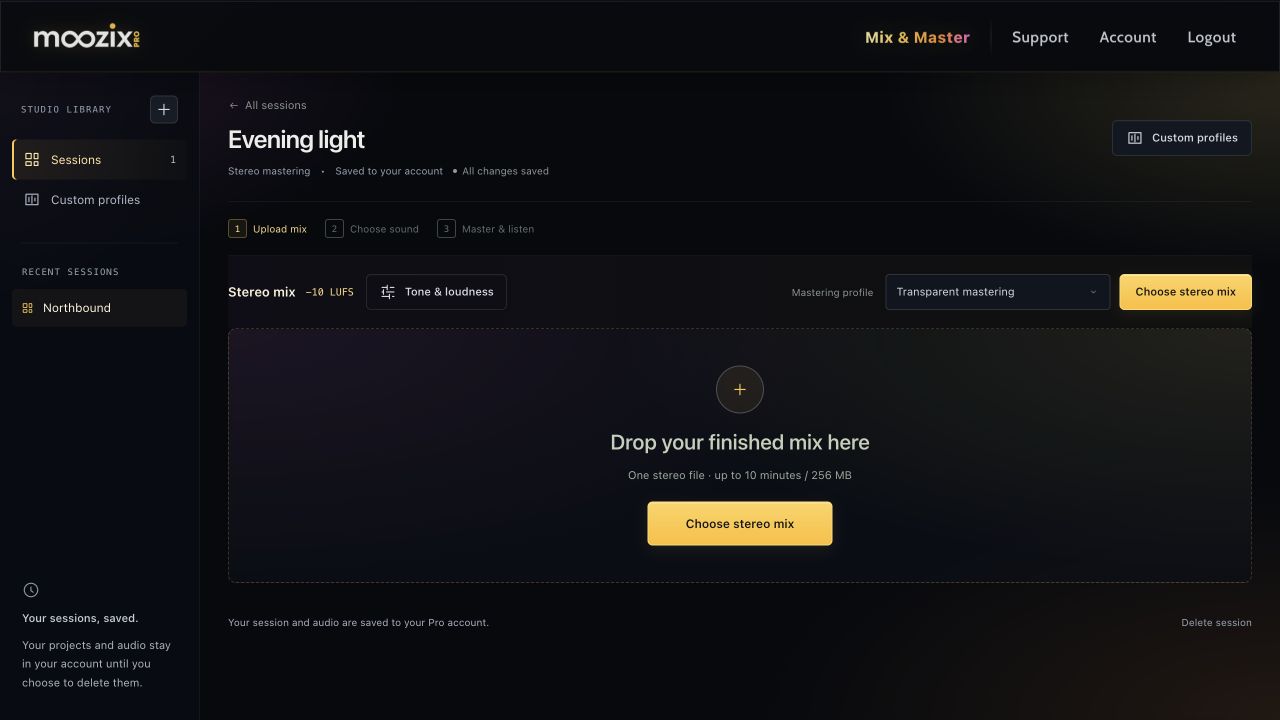
Start with one finished mix #
- Open Studio and choose Start a master.
- Rename the session if desired.
- Drop one stereo mix into the upload area or choose Choose stereo mix.
- Wait for preparation and preview the original mix.
This view masters the combined track. If the vocal and drums need separate balance changes, return to your source session or start Mix & master with separate stems.
Choose the mastering sound #
Use the Mastering profile dropdown above the audio. Transparent mastering is the neutral starting point. Pro can use a saved custom mastering reference.
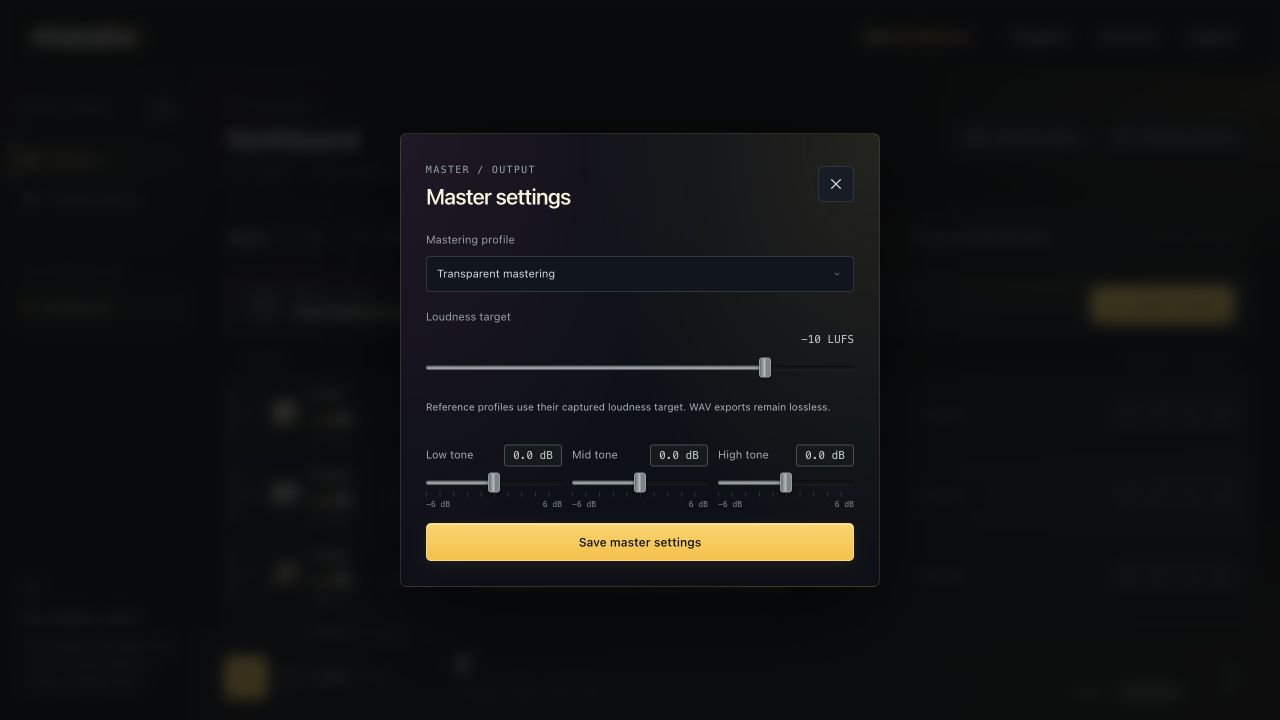
Open Tone & loudness or Mastering options to adjust Low/Mid/High tone and the loudness target. The default target is −10 LUFS, matching mastering from Mix & master. A reference profile can supply its own captured target.
Create and hear the master #
- Save any settings changes.
- Choose Master track.
- Follow the mastering window's status and completed-step progress.
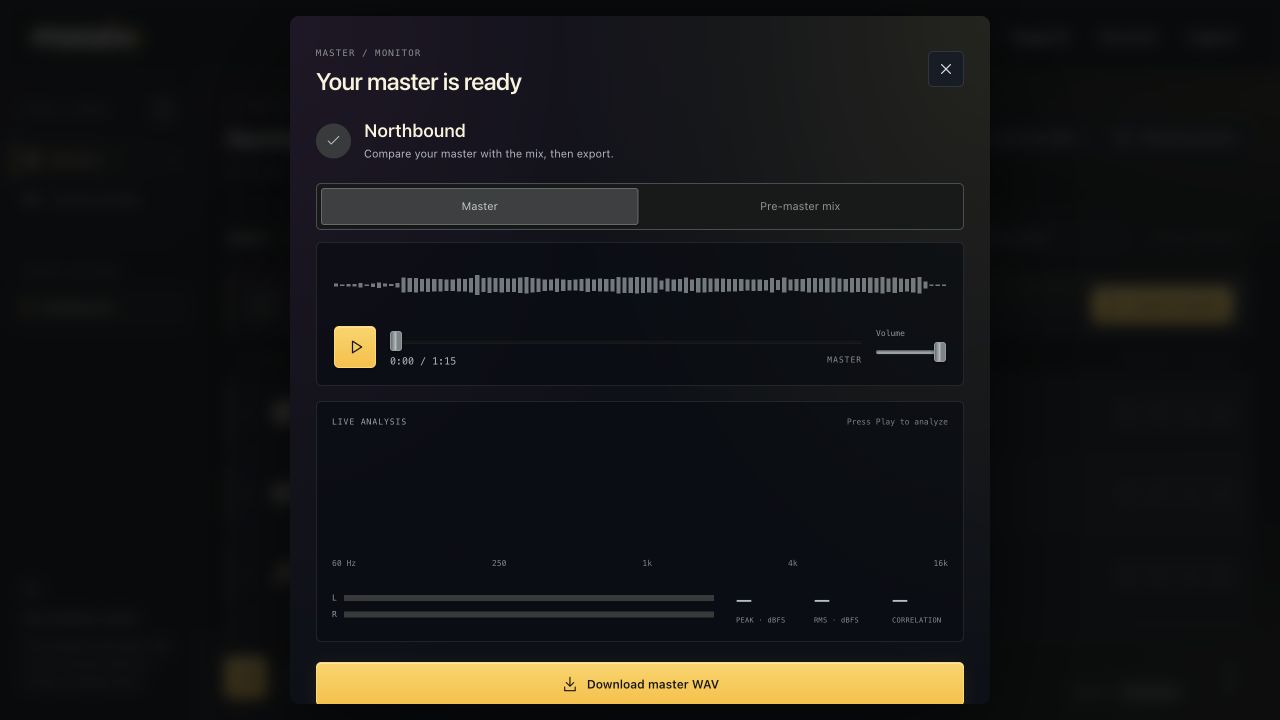
- When ready, use Master / Pre-master mix to compare.
- Press Play to hear the master and activate its live analysis.
You can close the progress window and let the server finish. Reopen the session later to listen; leaving during a file upload is different and can interrupt that upload.
Download the version you want #
Choose Download master WAV after listening. The export is 48 kHz, 24-bit WAV.
Free accounts can buy three master downloads for $5 per project, including later revisions of that project's master. Pro includes unlimited mastering and downloads. One-time purchases do not include individual stems or mix WAVs and do not extend Free session retention.