Set mastering profile, tone and loudness
Choose a target and broad tonal changes while understanding what loudness protection can and cannot do.
In this guide
Open the settings #
- In Mix & master, choose Mastering options.
- In a stereo-mastering session, use Tone & loudness or the mastering settings control near the top.
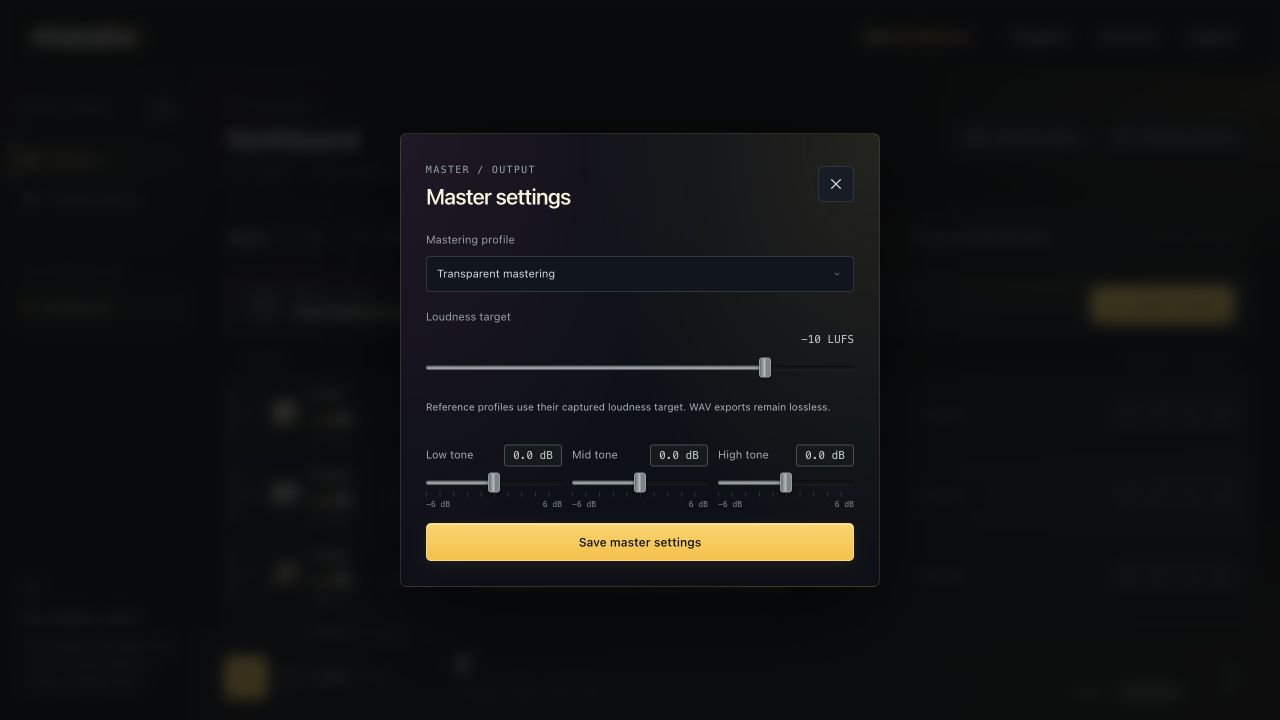
- Choose the Mastering profile.
- Adjust Loudness target and the tone sliders.
- Choose Save master settings, then create a new master.
Changing settings does not rewrite a WAV already downloaded. Render again for a result that includes the new settings.
Understand the loudness target #
The standard default is −10 LUFS. The control allows −18 to −8 LUFS in 0.5 steps. A less negative number asks for a louder master.
A target is not a promise that any source will reach that exact loudness without a trade-off. Peak protection can limit the achieved value. The measured master and target are displayed separately in the result window.
Do not judge quality from loudness alone. Compare punch, tone and vocal balance at a similar listening level; pushing the target harder can change the feel of transients.
Make broad tone changes #
Low tone, Mid tone and High tone are whole-master tonal adjustments. Each can be moved from −6 to +6 dB.
These controls affect the combined song, not one individual instrument. If only the bass is too heavy or one guitar is dull, adjust that stem in Mix & master instead of trying to solve every issue with the master tone sliders.
Use a custom mastering reference #
With Pro, add a full-mix reference to Custom profiles, analyze it, then select that profile in the mastering controls. A full-mix reference supplies mastering measurements, including its captured loudness target.
It does not separate the reference into instruments, copy a performance, or guarantee an identical result from different source material. Use the finished comparison and measured output to decide whether it suits the song.