Adjust levels, panning and stereo width
Fine-tune the automatic balance, place a part left or right and control its stereo spread.
In this guide
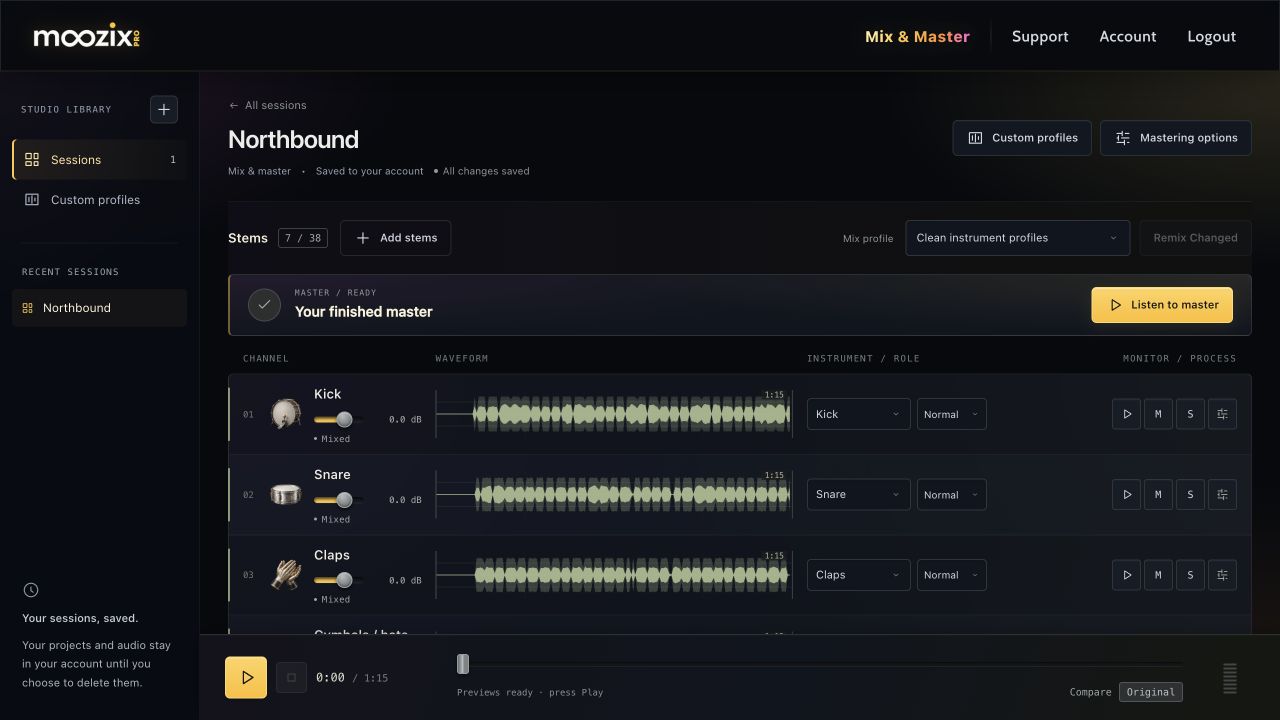
Adjust a track level after mixing #
- Mix the stem first.
- Drag the level slider under its name for a small balance change.
- Listen in the whole mix and wait for All changes saved.
- Master again when you want the new balance in a WAV.
In FX, Automatic mix gain is the engine's contribution; Channel level is your extra adjustment. The incoming recording level is not a requirement to pre-mix every stem by hand.
Set left or right placement #
- Open FX for a mixed track.
- Find Pan · L / R in the channel balance section.
- Move left for the left side, right for the right side, or center for an even placement.
- Use Automatic placement · preserve stereo stems to return to the engine's placement.
Clear Left/Right filename tokens guide the initial placement. Manually setting pan takes control of that setting; it is not another automatic-mixing request.
Control stereo width #
Open the Stereo field module in FX. 1× is the normal width setting, 0× collapses stereo difference toward mono, and settings above 1× increase stereo spread.
Width is not the same as pan. Pan moves a part across the stereo field; width changes its spread. A mono recording does not contain the same stereo information as a real stereo recording. Make measured changes and check that important parts remain clear when heard in mono.

Use musical role when a part has a different job #
Expand Track setup & profile and choose Musical role: Lead / foreground, Normal, or Support / background.
Use foreground for an intended lead and support for a background part. A role change asks the session to rebalance; wait for that balancing to finish. Avoid labeling every part as foreground, which removes the useful distinction.