Make your first stem mix
Go from a folder of separate tracks to a mix you can hear, adjust, master and export.
In this guide
Create your session #
- Sign in and open Studio.
- Choose Start a mix.
- Click the session title to give the song a name. Press Enter to save and leave the field.
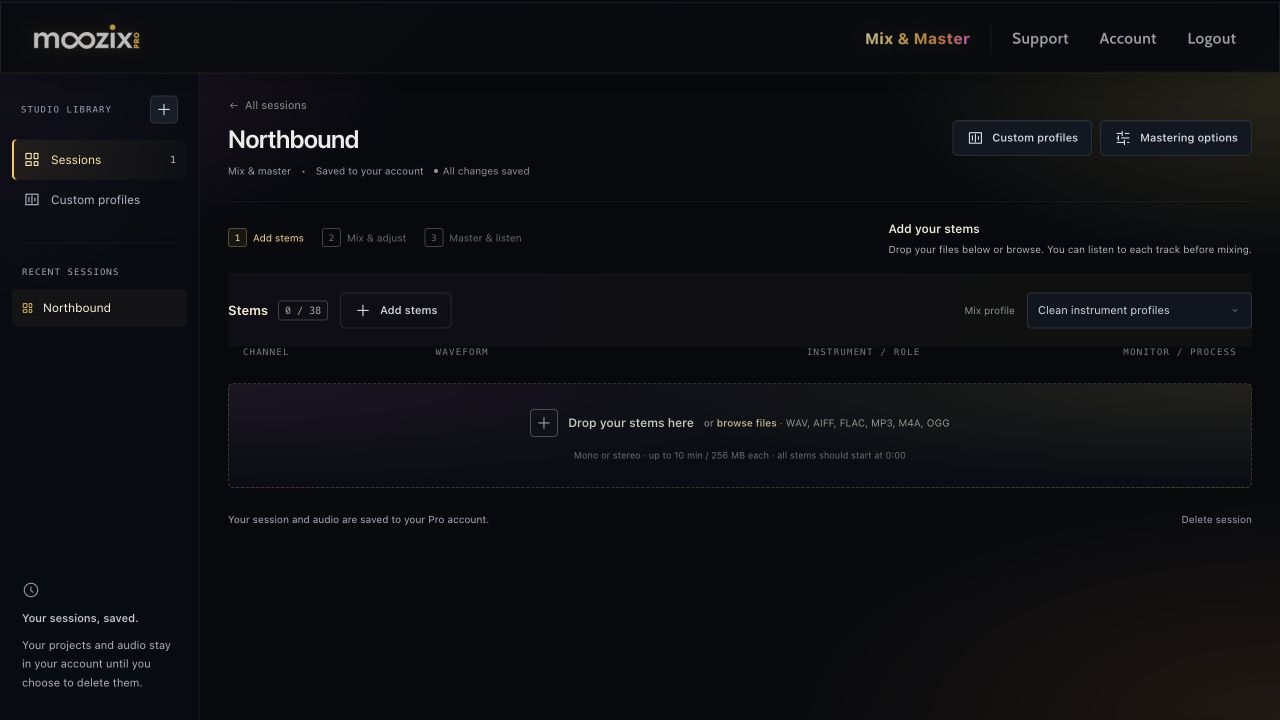
- Drag your stems into the upload area, or choose Add stems.
You can drop a whole batch at once. Upload rows appear with progress, and you can add another batch while the first is uploading, within your track allowance.
Check the parts before mixing #
- Wait for upload/preparation to finish.
- Check the instrument dropdown on every row. Filenames help select these automatically.
- Press a row's preview button if you need to identify its audio. Raw listening does not require a completed mix.
- Review the Mix profile dropdown. Start with Clean instrument profiles if you are unsure.
- Exclude duplicate sum or alternative tracks. Use mute for parts you do not want included.
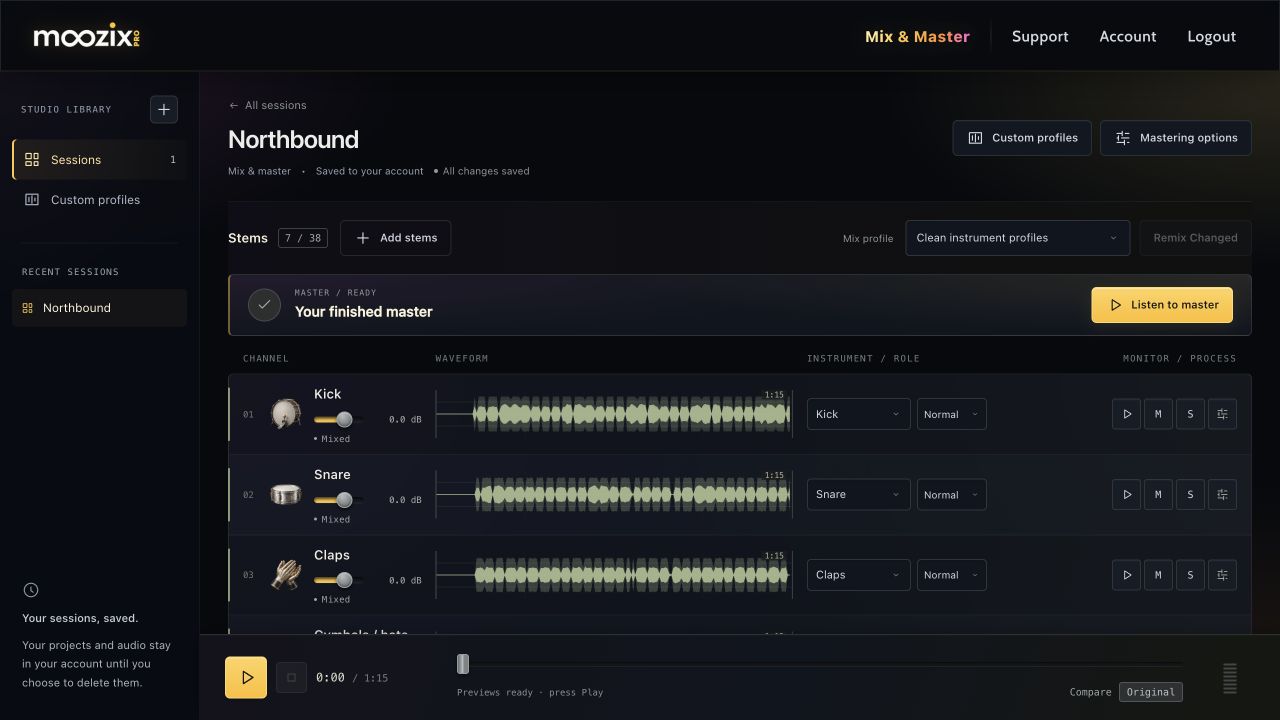
Level sliders and FX controls become available after a stem has been mixed. This lets you establish the automatic mix before fine-tuning it.
Mix all stems once #
- Choose the gold Mix All button beside the Mix profile dropdown.
- Follow the status as stems mix and the whole song is balanced.
- Wait until no tracks are processing and the player returns.
- Press Play at the bottom to hear the mix. MP3 previews preload; the player shows loading progress if audio still needs to arrive.
You do not need to press a mixing button once per stem. After the first mix, the batch button becomes Remix Changed.
Adjust, master, then download #
- Adjust a track's level or open FX for EQ, compression, stereo or reverb.
- Wait for All changes saved. Most channel effects are included when mastering; instrument, sound-profile and noise-cleanup changes need a new mix pass.
- Choose Mastering options if you want a different mastering profile, tone or loudness target.
- Choose Master song and watch its progress.
- When finished, listen to the master and compare it with the pre-master mix.
- Choose Download master WAV. Free accounts can buy a $5 pack of three master downloads; Pro includes unlimited downloads plus mix and stem WAVs.
Keep a downloaded backup, particularly on Free: sessions expire after 24 hours of inactivity.