Upload stems and add another batch
Bulk upload files, follow progress, correct instrument detection and add more parts to an existing song.
In this guide
Upload a batch #
- Open a Mix & master session.
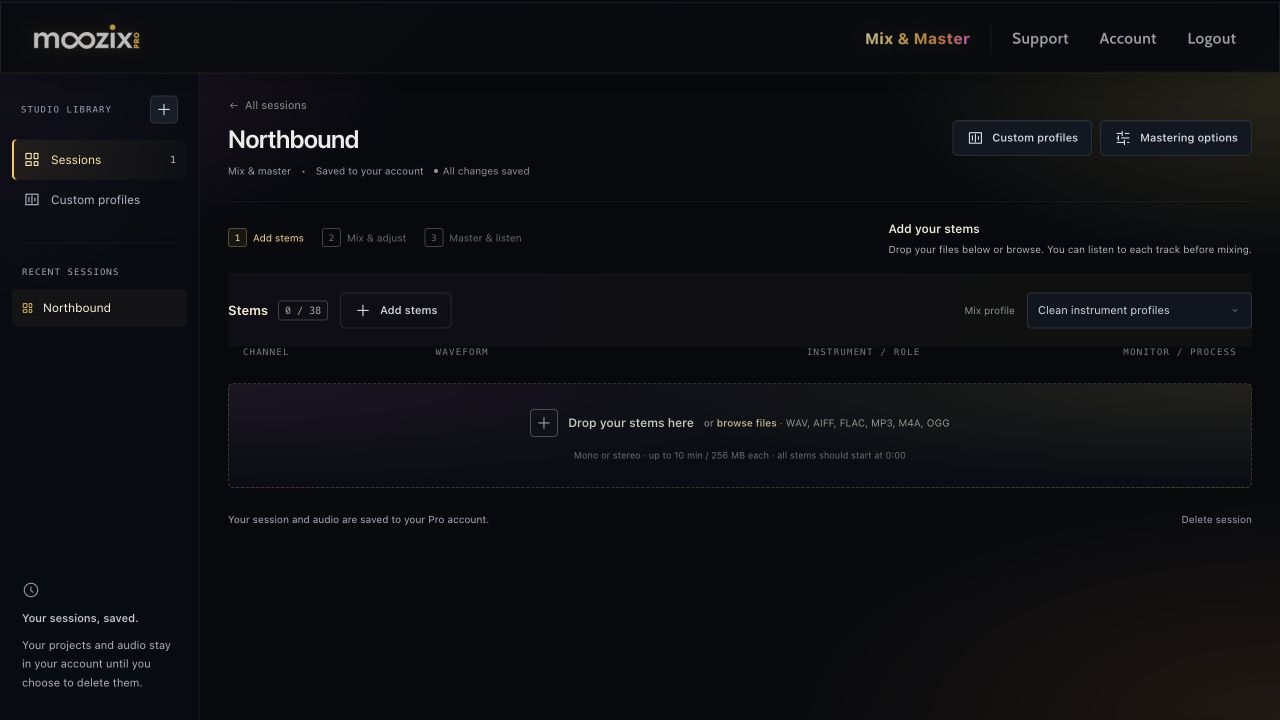
- Drag audio files onto the upload area, or choose Add stems and select multiple files.
- Follow each new row's upload progress. Preparation then creates the waveform and playback preview.
- Check the detected instruments before choosing Mix All.
A filename that contains the instrument helps detection. Unsupported files should be corrected or replaced rather than renamed to a different extension.
Add more files while uploads are running #
Drop the next batch into the same session. It joins the upload list instead of replacing the files already uploading. Stay on the page until uploads are complete.
You can also add stems after the first mix. Once the new files are prepared, Remix Changed includes the new stems without requiring another pass on unchanged stems.
Understand the limits #
| Limit | Free | Pro |
|---|---|---|
| Tracks in a mixing session | 16 | 38 |
| File duration | Up to 10 minutes | Up to 10 minutes |
| File size | Up to 256 MB | Up to 256 MB |
| Total uploads per session | Up to 4 GB | Up to 4 GB |
If a batch exceeds the track allowance, an upgrade prompt explains the limit. Choose Go Pro to upgrade, or No Thanks to return and select fewer files. A $5 download pack unlocks exports for a project; it does not increase the track allowance.
Remove or replace a wrong file #
Open the track controls after mixing and choose Remove this track, then confirm removal. Use the row's remove control where available for an unprocessed file. Upload the correct file with the same full-song start point.
Removing a track removes its audio and previews from active storage. Changing a filename extension does not convert the file's audio format. If preparation fails, see upload troubleshooting.